How to make a tutorial video on your PC without showing your face
Short answer: write the steps down first, clean your desktop, record your screen with the Snipping Tool (Windows + Shift + R) or OBS, talk over it with a decent mic or use a text to speech voice, then add zooms, captions and click sounds in a free editor like Clipchamp. Your face never has to appear. The screen is the star of a tutorial anyway.
All of my product videos are faceless, and in my experience most of the work isn't the recording. It's everything around it. Here's the whole pipeline, one step at a time, with a free tool for each.
1. Write the steps, not a script
You don't need a word for word script, but you do need the steps in order. One line per step, each one a thing the viewer will see change on screen: "open Settings", "click Privacy", "turn off the toggle". If a step has nothing visible, it's probably talk you can cut.
Do the task once without recording, following your own list. You'll find the step you forgot.
2. Clean the desktop and hide anything private
A faceless video can still show a lot about you. Notifications, a chat preview, your bookmarks bar, a file called something embarrassing.
I wrote up the free checklist for this in how to hide notifications, desktop icons and the taskbar on Windows 11: Do not disturb on, desktop icons off, taskbar on auto hide, and record one window rather than the whole screen.
Passwords and API keys are the big one. Log in before you start recording, use a test account where you can, and if something slips through, cover it in the edit (step 8).
3. Get the sound right
Your voice is doing the job your face would do, so it matters more than the picture.
- Check the mic in Windows first. Go to Start, Settings, System, Sound, look under Input, select Start test and talk normally, then play it back and adjust Input volume if you need to (Microsoft Support).
- Record somewhere soft. A small room with a couch, curtains and a rug sounds better than a big empty one with a better mic.
- Record the voice after the screen if talking and clicking at the same time trips you up. Plenty of people do it that way.
Don't want to use your own voice at all? Clipchamp has a text to speech voiceover built in, using Microsoft's Azure AI Speech voices in a long list of languages (Microsoft Support), and voiceovers are on its free plan (Clipchamp pricing). On YouTube, the AI disclosure is for content that makes a real person appear to say or do something they didn't, alters a real event or place, generates a realistic scene that never happened, or makes music that's the focus of the video (YouTube Help). A synthetic voice reading your own tutorial script isn't in that list, but read the page yourself if you're unsure.
4. Record the screen
Three free ways on Windows 11:
- Snipping Tool. Press Windows + Shift + R, drag a box around the area you want, and select Start (Microsoft Support). Quickest for short clips.
- Clipchamp's recorder can record a browser tab, a window or the entire screen straight into a project (Microsoft Support).
- Xbox Game Bar. Windows + Alt + R starts and stops a recording of the app you're in, and Windows + Alt + M toggles the mic. Files land in Videos, Captures as MP4 (Microsoft Support). It's made for recording the game or app you're in, so for the desktop or a mix of windows, use one of the others.
OBS is the fourth, and the most flexible, if you're happy setting it up.
5. Move the mouse like someone's watching it
Without a face, the cursor is your face. Move it slowly, stop on what you're talking about, and don't wave it around while you think. A bigger cursor helps a lot on phones, and there are a few free ways to get one in how to highlight, enlarge or hide the cursor.
6. Zoom in where it matters
A full screen recording shown on a phone is tiny. Zoom in on the part you're clicking, hold it while the result shows, then pull back out. Don't zoom on every click or the video turns into a ride. The free ways in Clipchamp, CapCut and DaVinci Resolve are in how to zoom in and out on a screen recording.
7. Add click sounds (optional, but they help)
A soft click on every press tells people something happened, even when they're half watching. Free CC0 click and keyboard sounds, and how to place them, are in how to add mouse click and keyboard typing sounds.
8. Blur anything you missed
In Clipchamp, split the clip around the moment, put a copy on top, crop that copy down to the private bit and add the blur effect to it, with the original underneath (Clipchamp). Better still, re-record the step.
9. Add captions
Lots of people watch with the sound off, so captions do as much as the voice.
- Clipchamp: select Transcribe media, pick the language, and it writes captions from the speech. You can download them as an SRT file too (Microsoft Support). Auto captions are on the free plan, and Clipchamp exports at 1080p with no watermark for free (Clipchamp pricing).
- YouTube makes automatic captions itself in over 100 languages, but its own help says they can get things wrong, so review and fix them in YouTube Studio under Subtitles (YouTube Help).
10. Export twice: wide and tall
Export a 16:9 version for YouTube, then a 9:16 version of the best 30 to 60 seconds for Shorts, Reels and TikTok. A tall crop of a wide screen loses most of it, so don't just crop the centre: how to make a vertical screen recording has the ways around that.
Or do steps 4 to 10 in one place: Framok
That's ten steps and three or four apps. I built Framok, my screen recorder for Windows, so the middle of that list happens on its own. Press Ctrl + Alt + R, do the task, press it again, and the editor opens with the camera work already done.
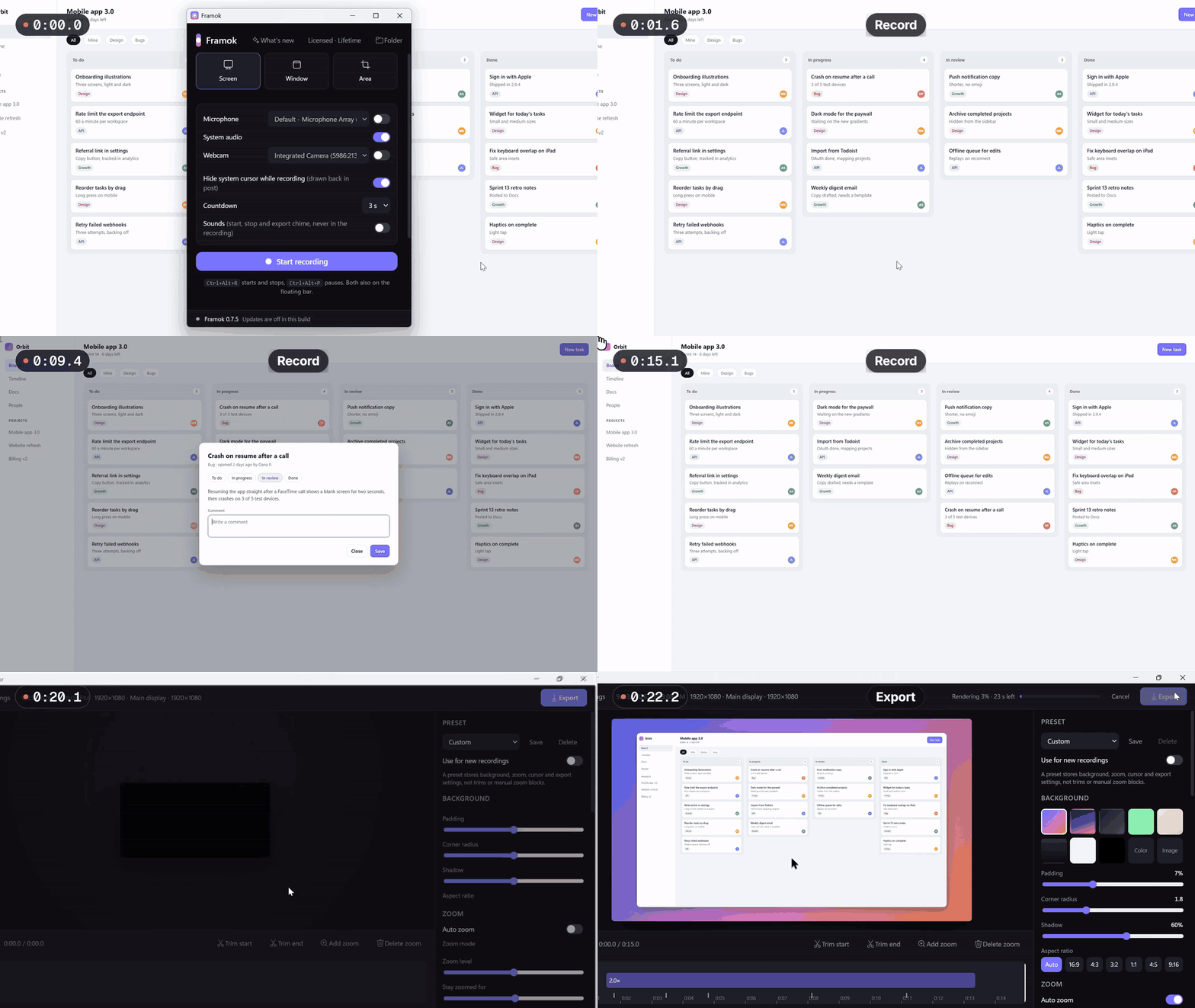
- Zoom on every click, joined up when clicks are close together so it doesn't bounce. Or follow the cursor, or only zoom where you click into a field and type.
- A cursor drawn after recording: 15 styles, any size, with your hand's jitter smoothed out.
- Click and typing sounds laid on every press, from the timing it kept.
- Keys on screen. An optional pill shows named keys like Enter, Esc and Ctrl. Letters show as a typing pulse, and a shortcut like Ctrl + C shows as Ctrl and a dot, because Framok never records which letter you pressed. So it's safe to leave on while you type a password.
- System audio and your mic in the same take.
- Both shapes from one recording: 16:9 for YouTube and 9:16 Stack for Shorts, up to 4K at 60 fps.
Where Framok doesn't help
- No captions. Use Clipchamp or YouTube for those (step 9).
- No voiceover or text to speech. Record your voice with the take, or add it in an editor afterwards.
- No blur tool. Keep secrets off screen (step 2) or blur in an editor.
- Windows only. Windows 10 or 11, 64 bit. A Mac version has a waitlist at the bottom of framok.com.
- No free trial on the download from framok.com. A 7 day trial comes with the Microsoft Store version, which isn't out yet, and paid licences have a 14 day money back guarantee.
- The installer isn't code signed yet, so SmartScreen warns the first time. Click More info, then Run anyway.
Framok is $39 once for the life of the product, or $5 a month and cancel any time. Both cover 2 of your own PCs.
Faceless tutorial makers: your own voice or a generated one? Curious which way people are going now.
Sources
- Microsoft Support, Use Snipping Tool to capture screenshots
- Microsoft Support, Record your screen with Xbox Game Bar
- Microsoft Support, Set up and test microphones in Windows
- Microsoft Support, Clipchamp: screen recording, auto captions and text to speech
- Clipchamp, pricing and free plan and how to blur a video
- YouTube Help, automatic captions and disclosing altered or synthetic content
- Framok's changelog and its key logging code, for the keystroke pill and what it never records