How to add mouse click and keyboard typing sounds to a screen recording
Short answer: download click and keyboard sounds with a CC0 licence (Kenney, BigSoundBank, or Freesound filtered to Creative Commons 0), put each one on an audio track under your video at the frame where the button reacts, keep them well under your voice, and rotate a few different key sounds so typing doesn't sound like a machine gun. If you record in Framok, it does all of this for you from the clicks and keys it logged while you recorded.
Silent demos are cooked imo. A click sound tells the viewer something happened even when they're half watching on a phone, and typing sounds make a form fill feel like a person is doing it. Here's how to add them for free, then the automatic way I built into my screen recorder.
Where to get mouse click and keyboard typing sounds you're allowed to use
Search "mouse click sound effect" and you get pages of YouTube uploads with "no copyright" in the title. A title isn't a licence. Get sounds from somewhere that says what the licence is.
- Your editor's own library first. Clipchamp has sound effects under the content library, Audio, Sound effects, and says all of its stock audio is royalty free for personal and commercial use (Clipchamp). Worth a search for "click" or "typing" before you download anything.
- Kenney. Interface Sounds and UI Audio are free packs of clicks, switches and ticks, released as CC0. That means no credit needed, commercial use fine. Two of Framok's click styles come from these packs.
- BigSoundBank. Joseph Sardin's library of real recordings, including a MacBook Pro keyboard and a typewriter. The free sounds are CC0, and the licence page says a credit is appreciated but nothing is mandatory.
- Freesound. Huge, but every sound has one of three licences (Freesound FAQ). After a search, filter the licence to Creative Commons 0 and you're safe. Attribution means you credit the author in your description. Attribution NonCommercial means you can't earn money from the video, so if your channel is monetised, skip those.
Grab several takes of the same key, not one. You'll need the variety later.
How to add click sounds to a video by hand
This works the same in Clipchamp, CapCut, DaVinci Resolve or Premiere.
- Import the sounds and give them their own audio track under the video, so you can move and mute them without touching your voice.
- Find the frame where the button reacts. Zoom the timeline in around the click and step through frame by frame (in DaVinci Resolve the left and right arrow keys step one frame, Blackmagic Design). The moment to hit is when the button changes, the menu opens or the checkbox ticks. The cursor arriving over the button is too early.
- Put the start of the click sound on that frame. Trim any silence off the front of the file first, or every click will land late.
- Copy it to the next click and repeat.
The honest downside is that last step. When I built the automatic version, my 34 second test take had 57 clicks and key presses in it. That's 57 sounds to place by hand for half a minute of video.
How to add typing sounds to a video
Typing is where hand placed sounds go wrong, because one key sound repeated fast sounds fake straight away.
- Long runs of typing: lay a typing clip across the whole run and cut it where the typing stops and at every pause. Nobody can count keystrokes at normal speed.
- Short entries (a search, a name): place single key sounds, rotating three or four different ones and never the same one twice in a row.
- Give Space and Enter their own sound. They're bigger keys and sound heavier. A typewriter bell on Enter is a fun one if the video suits it.
- Nudge each one a little. Tiny changes in volume (and pitch, if your editor does it) stop a burst sounding like a machine gun.
- Match the speed. Fast typing wants short, light hits. Slow typing can take the fuller sound with a release.
How loud should click sounds be
Under your voice, always. If there's narration, the clicks are seasoning. Set them where you can hear them in a quiet gap and barely notice them while you're talking, then play it back on phone speakers as well as headphones, since your viewers will be on one or the other.
For what it's worth, Framok starts clicks at 80 percent and typing a notch below at 70 percent of each sound's level, and you drag both from there.
The automatic way: Framok
This is the bit I added to Framok, my screen recorder for Windows, on 19 Sep. Framok already logs every click and key while you record, for its automatic zoom, so the editor knows exactly when each one happened. Flip on Add sounds and it lays a click on every mouse press, a key on every key press, a soft tick per scroll notch and a quiet whoosh as the camera zooms in and out.
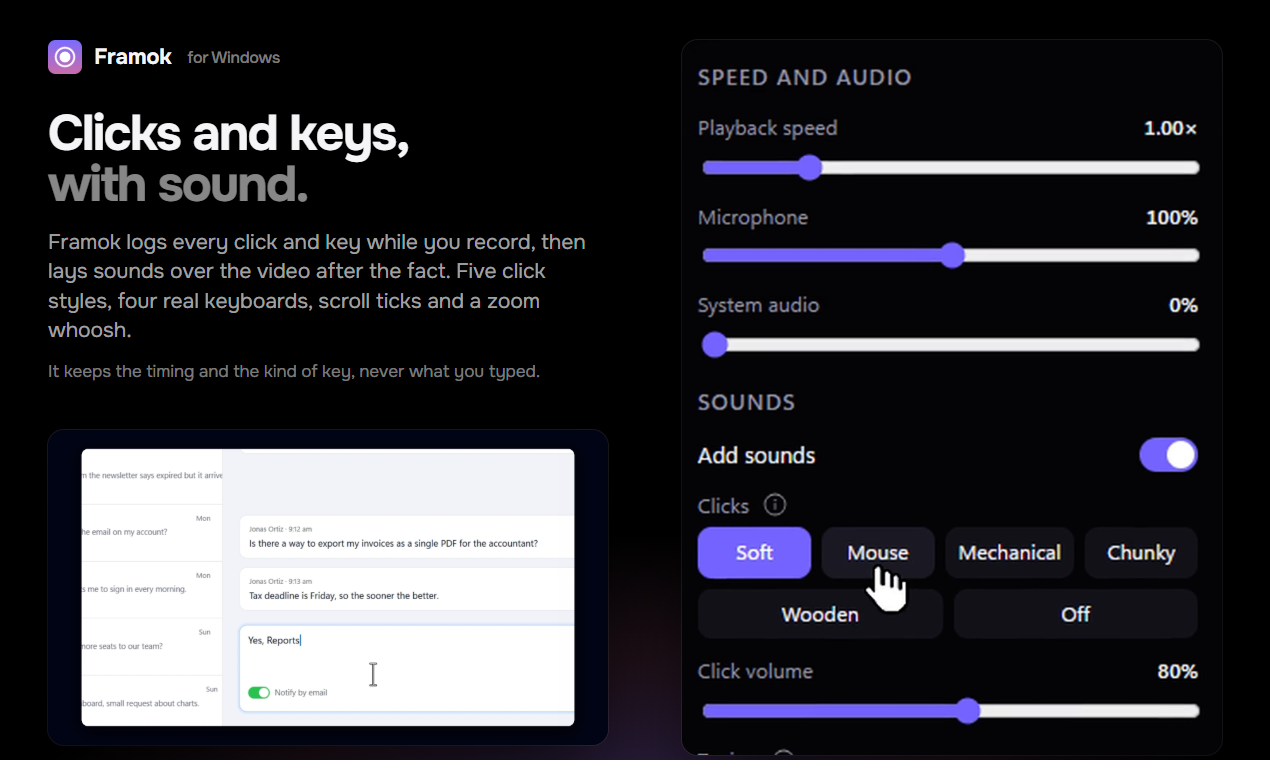
What's in it:
- Five click styles: Soft, Mouse, Mechanical, Chunky and Wooden.
- Four real keyboards, plus Soft: a Cherry MX Blue (clicky), a brown style board (tactile), a MacBook Pro, and a Hermes Precisa 305 typewriter whose end of line bell plays on Enter.
- Typing that matches your speed. Key presses under 90 ms apart get the shortest, lightest hits and no releases; over 250 ms apart they get the fuller ones. Every hit shifts up to 4 percent in pitch and 1.5 dB in volume, so it never sounds like a machine gun. Space, Enter and Backspace get their own sounds where the keyboard has them.
- On the right frame. The sounds play in the editor as you preview and follow your trims and speed changes. On export they're mixed with your mic and system audio. I checked it by exporting a real 34 second take twice, once plain and once trimmed with 1.5x speed: 57 hits measured each time, none more than a frame off.
- Nothing to credit. Every sound is from a CC0 or royalty free pack, and none of them needs a credit line in your video.
- It doesn't know what you typed. The recorder keeps the timing and the kind of key (letter, Space, Enter and so on), never the characters.
Where Framok doesn't help
- Only recordings made in Framok. The sounds come from the clicks and keys Framok logged while it recorded, so it can't add them to a video from OBS, your phone or the Snipping Tool. For those, use the manual way above.
- Per recording, not per click. You pick one click style, one keyboard and a volume for each. You can't mute a single stray click or add a sound where nothing was pressed.
- You can't load your own sound files yet. It's the built in sets or nothing.
- Windows only. Windows 10 or 11, 64 bit. A Mac version has a waitlist at the bottom of framok.com.
- No free trial on the download from framok.com. It asks for a licence key before it records. A 7 day trial comes with the Microsoft Store version, which isn't out yet, and paid licences have a 14 day money back guarantee.
- The installer isn't code signed yet, so SmartScreen warns the first time. Click More info, then Run anyway.
Framok is $39 once for the life of the product, or $5 a month and cancel any time. Both cover 2 of your own PCs.
Do you add click sounds to your demos, or do you think they're too much? Keen to hear which way people lean.