How to make a vertical (9:16) screen recording on a PC for TikTok, Reels and Shorts
Short answer: TikTok, Reels and Shorts all want a tall 9:16 video, and your PC screen is wide. You can record something narrow in the first place (a thin browser window or a region in the Snipping Tool), set up a vertical canvas in OBS, or crop a normal recording to 9:16 in Clipchamp or CapCut and move the frame by hand to follow what you're doing. Whichever you pick, keep the important stuff out of the bottom third, where the caption and buttons sit.
I build a Windows screen recorder, and the first vertical trailers I made for it were honestly confusing to watch. Here's why that happens, the free ways around it, and the layout I ended up building.
Why vertical screen recordings look bad
It's one number. A 9:16 crop of a 1920 x 1080 screen is 608 pixels wide. That's 32 percent of the screen, before you zoom in at all.
So a plain centre crop throws away two thirds of the picture, and whatever you click near the edges (menus, the send button, the sidebar) simply isn't in the video. That's what went wrong with my first trailers: the cursor and half the words were out of frame.
The other way round is just as bad. Fit the whole wide screen into a 1080 pixel wide frame and everything shrinks to 56 percent, so 14 px text ends up about 8 px tall in the video, with a big empty band above and below it. On a phone that's unreadable.
Every method below is a way of dealing with that trade.
What size to make it
All three apps take a 9:16 vertical video, and 1080 x 1920 is the size most people export at.
- YouTube Shorts are vertical or square videos up to three minutes long (since 15 October 2024), at up to 1080p (YouTube Help, YouTube Help).
- Instagram Reels take anything from 1.91:1 to 9:16, at least 720 pixels and 30 frames a second (Instagram Help).
- TikTok recommends 9:16 vertical for its ads, at 540 x 960 or more (TikTok Ads).
Way 1: record something narrow in the first place
The simplest fix is to not record a wide screen at all.
- Make the window narrow. Drag your browser or app down to a tall, thin window. Most websites switch to their phone layout, with bigger buttons and text that reads at phone size. In Chrome you can also open DevTools and use Toggle device toolbar to pick a phone sized width (Chrome for Developers).
- Record just that area. Press Windows + Shift + R to open the Snipping Tool's recorder, drag a rectangle around the window, then select Start (Microsoft Support). The rectangle is free hand, so it won't be exactly 9:16. Get it close and fix the last bit in your editor.
Good for: websites and apps that have a mobile layout. Bad for: desktop software that needs the full width, like a spreadsheet or a video editor.
Way 2: a vertical canvas in OBS
OBS records whatever its canvas is, and the canvas doesn't have to be wide. Under Settings, Video, the Base (Canvas) Resolution is "the amount of space you have to fit your sources" and the Output (Scaled) Resolution is what the recording comes out at (OBS Knowledge Base). Set both to 1080 x 1920, add a Display Capture or Window Capture source, then hold Alt and drag the source's edges to crop it down to the part of the screen you want.
If you also want a normal wide recording of the same session, the free Aitum Vertical plugin gives OBS "a separate canvas to manage your vertical content", with its own Record vertical button that can start and stop with the main recording (OBS forum, Aitum Vertical). It needs OBS 29 or later.
The catch with both: the crop is fixed while you record. If you click something outside it, it isn't in the video. So you either keep your clicks inside the box or move the crop as you go.
Way 3: crop a normal recording in your editor
Record the full screen as usual, then reframe it.
- Clipchamp (free, already on Windows 11): click the size button on the toolbar above the preview and pick 9:16. The video sits in black bars until you click Fill, which crops it to fill the frame (Microsoft Support).
- CapCut desktop: choose Ratio and switch to 9:16, then try Auto reframe in the Basic section, or use Crop above the timeline and pick 9:16 (CapCut, CapCut).
Either way you start from the centre of the screen. To follow the action you have to split the clip wherever you click somewhere new and move the frame for each piece, and that's where the time goes.
The stacked layout, by hand
The layout that reads best on a phone, in my experience, is two panes: the whole screen small at the top, so people know where they are, and a close up underneath, so they can actually read it. You can build it in any editor that does layers. Put the recording on the timeline twice, shrink the top copy to fit the width, and crop and scale the bottom copy to the area you're working in. Then move the bottom one every time the action moves.
Keep it inside the safe zone
The apps draw over the top and bottom of your video: tabs at the top, the caption and account name at the bottom, and the like, comment and share buttons down the right.
- Meta asks Reels advertisers to leave "at least 14% of the top, 35% of the bottom and 6% on each side" free of anything important (Meta Ads Guide). On a 1080 x 1920 video that's about 269 px at the top and 672 px at the bottom.
- TikTok says its safe zone depends on the shape, the caption length and the format, and gives downloadable safe zone files rather than fixed numbers (TikTok Ads).
- YouTube doesn't publish Shorts safe zones that I could find.
Those are ad rules, but the same buttons sit over normal posts. My own rule of thumb in Framok is to keep the top 160 px, the bottom 400 px and a 140 px column down the right clear on a 1080 x 1920 export.
And make text big before you hit record. Browser zoom at 150 to 200 percent costs nothing and makes a huge difference on a phone.
The automatic way: Framok's Stack
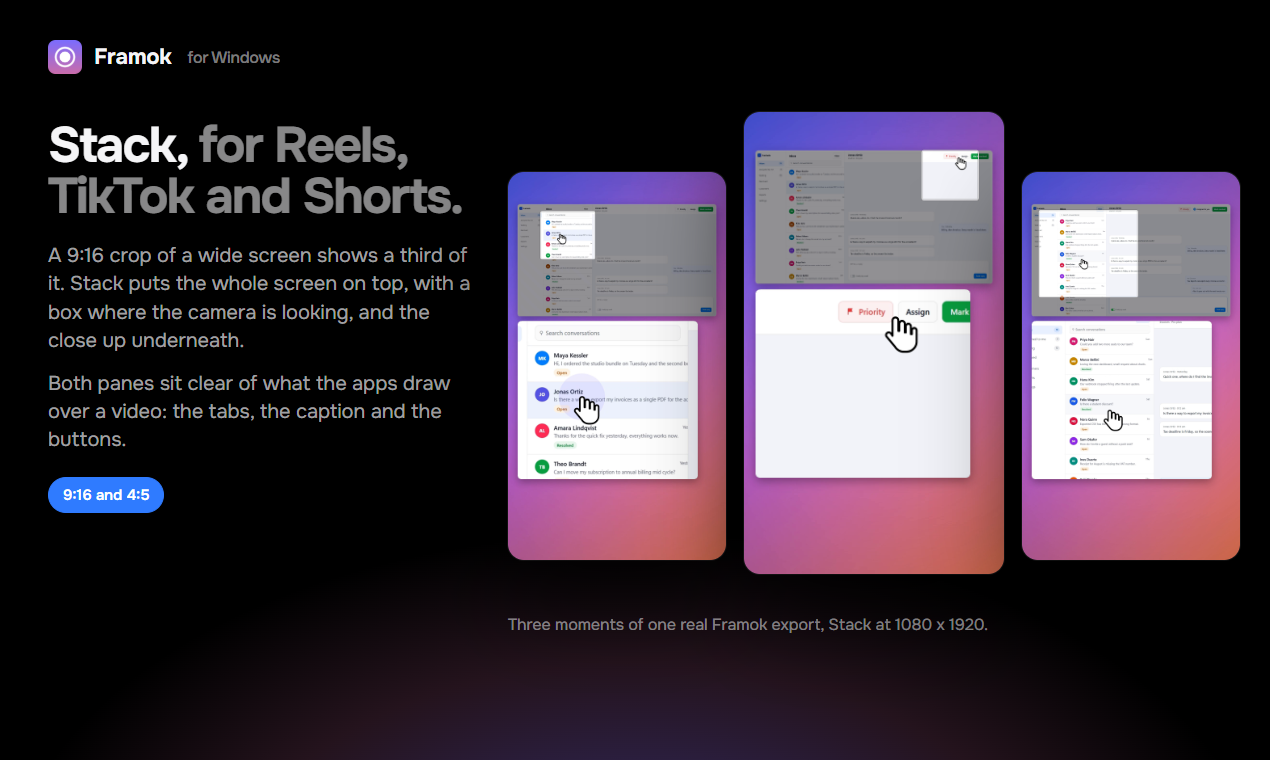
This is the problem I ended up building into Framok, my screen recorder for Windows. You record the full screen once, and the 9:16 export is the stacked layout from above, done for you.
- The whole screen on top, almost the full width of the video, with a rounded box showing where the camera is looking.
- The close up underneath, following your clicks and your typing. Before each click it settles on the button, row or field you're about to press and holds still until the result has shown.
- Inside the safe zone. Both panes stay clear of the tabs, the caption line and the buttons on the right. On a 1080 x 1920 export the top pane is 984 x 553 and the close up 892 x 783, and together they take 70 percent of the frame height.
- A bigger cursor in tall videos, since that's the thing people follow on a small screen.
- Two presets: Reels, TikTok, Shorts (9:16 Stack) and Feed post (4:5 Stack). Files come out named after their shape, like recording-9x16-stack-1080p.mp4.
- Fill and Fit are still there. Fill crops to the frame and follows the action, framing the whole button or field under each click so words don't get cut off. Fit is the whole wide picture in a band.
When I checked Stack on a demo take, none of the 24 click moments had the cursor or the clicked thing out of frame.
Where Framok doesn't help
- Only recordings made in Framok. Stack needs the click and cursor timing Framok saves while it records, so it can't reframe a video from OBS or your phone.
- No captions yet. Lots of vertical videos get watched with the sound off, so you'll still want captions from Clipchamp, CapCut or the app you post with.
- Windows only. Windows 10 or 11, 64 bit. A Mac version has a waitlist at the bottom of framok.com.
- No free trial on the download from framok.com. A 7 day trial comes with the Microsoft Store version, which isn't out yet, and paid licences have a 14 day money back guarantee.
- The installer isn't code signed yet, so SmartScreen warns the first time. Click More info, then Run anyway.
Framok is $39 once for the life of the product, or $5 a month and cancel any time. Both cover 2 of your own PCs.
How do you do your vertical cuts at the moment: narrow window, OBS, or cropping after? Keen to hear what's working.
Sources
- YouTube Help, YouTube Shorts up to three minutes and Upload YouTube Shorts
- Instagram Help, Reels sizes
- Meta Ads Guide, Instagram Reels video ads
- TikTok Ads Manager, Video ads specifications, updated June 2026
- Microsoft Support, Use Snipping Tool to capture screenshots and Change the aspect ratio of a video in Clipchamp
- OBS Knowledge Base, OBS Studio overview, and the Aitum Vertical plugin page
- CapCut, How to edit vertical videos and How to crop a video in CapCut PC
- Chrome for Developers, Device Mode
- Framok's changelog (0.7.7 to 0.7.11) and build notes from 24 and 25 Sep 2026, for the 32 percent figure, the pane sizes and the 24 click check