How to upload an MP3 to YouTube: it needs a picture or a video
Short answer: you can't upload an MP3 to YouTube on its own. YouTube only takes video files, so you turn the audio into a video first. The quickest free way is a still picture: put an image and your MP3 on the timeline in Clipchamp, stretch the image to the length of the audio, export at 1080p and upload the MP4. If it's a podcast with an RSS feed, YouTube can do this for you. If you want something that moves, make a waveform video.
Why YouTube says no to an MP3
YouTube's own list of supported formats is all video: MP4, MOV, AVI, WMV, WebM and so on. Its help page says it straight out: "Audio files, like MP3, WAV, or PCM files, can't be uploaded to create a YouTube video. You can use video editing software to convert your audio file to a video." The only place an audio file goes is as an extra language track on a video you've already uploaded (YouTube Help).
So whatever route you take, the thing you upload is a video with your audio in it.
Way 1: a still image in Clipchamp (free, already on Windows 11)
Clipchamp is the official Windows video editor. On Windows 11 you can find it from Start or by searching for it in the taskbar, and on Windows 10 it's a free install from the Microsoft Store (Microsoft Support). The free plan exports at up to 1080p with no watermark (Clipchamp pricing).
- Start a new video and click Import media to add your MP3 and an image. Clipchamp takes video, images and audio (Microsoft Support).
- Drag both onto the timeline, the image on the video track and the MP3 under it.
- Stretch the image to the end of the audio. An image starts at four seconds long. Click it on the timeline and drag its right hand trim handle until it lines up with the end of the MP3. There's no box to type an exact length, so zoom the timeline in near the end to get it right (Microsoft Support).
- Click Export at the top right and choose 1080p. It saves an MP4 at 30 frames a second (Microsoft Support), and Clipchamp can upload it to YouTube for you from the same screen.
- Upload the MP4 in YouTube Studio like any other video.
What image to use: a 1920 x 1080 picture so it fills YouTube's 16:9 player. YouTube's own advice is to avoid adding padding or black bars to the video itself (YouTube Help). A square cover art file will sit in the middle with bars either side, so either put it on a 1920 x 1080 background first or let the bars be.
For reference, the encoding YouTube recommends (written for its Content Manager partners, but it's the standard reference) is an MP4 with H.264 video, AAC audio at 48 kHz, and 384 kbps for stereo audio (YouTube Help). Clipchamp's MP4 export is already in that shape, so you don't need to change anything.
Way 2: let YouTube do it from your podcast's RSS feed
If you have an audio podcast with an RSS feed, you don't need to make any videos. YouTube can read the feed and "use your podcast's show art to create a static-image video and upload it to your channel on your behalf", and new episodes upload automatically from then on (YouTube Help).
- In YouTube Studio, click Create, New podcast, Submit RSS feed.
- Accept the RSS terms, paste your feed URL and verify it with a code sent to the email address in your feed. If your channel doesn't have advanced features yet, you'll be asked to verify your identity.
- Pick which episodes to bring in: all of them, those since a date, or only future ones. Uploads can take a few days, and they arrive as private videos you then publish (YouTube Help).
Things to know first:
- It's not in every country. The channel owner's location decides it, and YouTube keeps a list of about 100 countries where it works (YouTube Help).
- No ads in the audio. YouTube's page says podcast content uploaded this way "cannot contain advertisements", and branded content and host read promos have to be declared (YouTube Help). If your episodes carry dynamically inserted ads, read that page closely.
- It's always the same still picture. Fine for people who listen in the background, not much to look at.
Way 3: a waveform video, for something that moves
A still image is fine for a full album track or an hour long episode that people leave running. For a short clip, a song you're sharing, or anything that has to stop someone scrolling, a picture that moves with the sound does more. That's what a waveform video (an audiogram) is: your cover art and title, with bars or a ring that move to the audio, and often captions.
This is what I built Wayvl for. It's free and runs in your browser, and the audio never leaves your device: the decoding, drawing and encoding all happen in the tab.
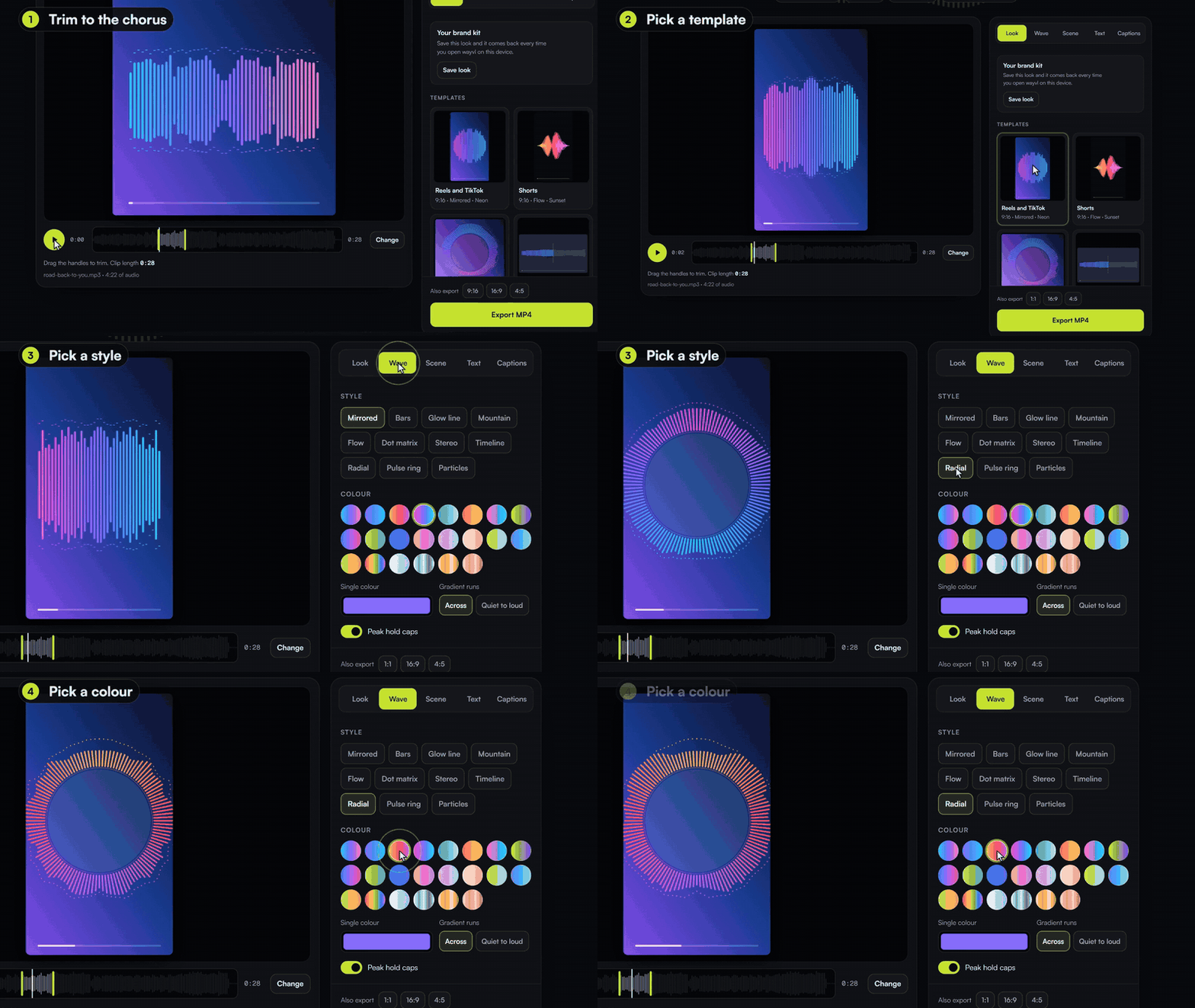
- Drop in your MP3 (or WAV, M4A, AAC, OGG, FLAC, or a video file).
- Trim it to the part you want, up to five minutes.
- Pick 16:9 for a normal YouTube video (1920 x 1080), or 9:16 for a Short (1080 x 1920). 1:1 and 4:5 are there too, and you can export several sizes in one go.
- Choose a template or a wave style, add a title, your cover art and your handle.
- Turn on captions if you want them, then Export MP4 and upload that to YouTube.
A few things in it worth knowing about:
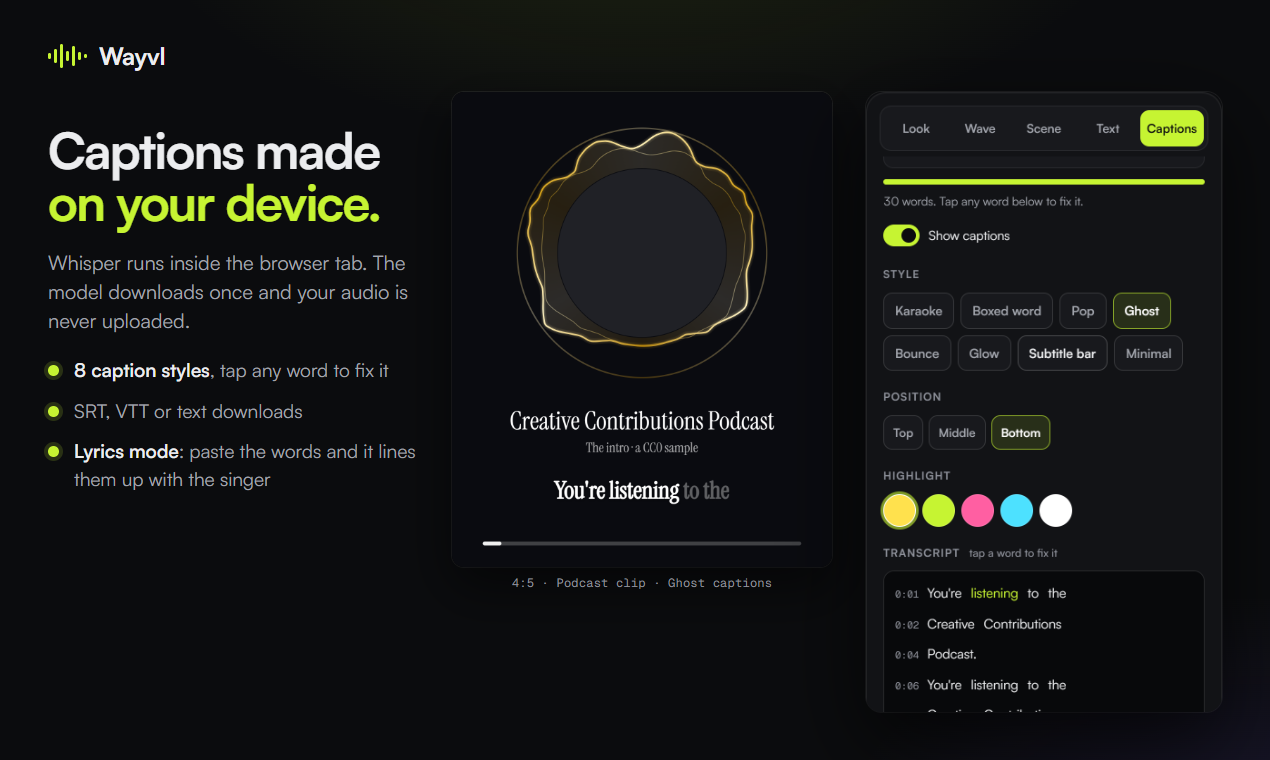
- Captions made on your device. Speech to text runs in the browser with Whisper, so the audio still isn't uploaded. Tap any word to fix it, and download the captions as SRT, VTT or text if you'd rather upload them to YouTube separately.
- Songs work too. Captions on singing used to come back empty because the model answers music with a [Music] tag, so there's a song mode now. And if you have the lyrics, lyrics mode lines your pasted words up with the singer.
- 11 wave styles, gradient fills, templates, and a brand kit that remembers your look in that browser.
Where Wayvl doesn't fit
- Five minutes at most. Longer clips take too much memory to encode in a browser tab. For a full podcast episode or a long track, use Way 1 or Way 2.
- Big files. Expect roughly 1 to 1.5 MB per second of video at the default quality, so a three minute song is a few hundred MB. YouTube takes that fine, it just takes a while to upload.
- It needs a recent browser to export: Chrome or Edge on a computer, Chrome on Android, or Safari from iOS 16.4 and macOS 13.3. Firefox can preview but not export.
When a still picture is enough
- Full episodes and long mixes, where people listen with the tab in the background: a still picture or the RSS route is fine, and it's far less work.
- Clips, Shorts and singles you want people to actually watch: motion and captions give them a reason not to scroll past.
One thing a video upload won't do: YouTube Music
Uploading a song as a video puts it on YouTube. It doesn't make it a proper release on YouTube Music. For that YouTube points you to a distributor: "Even if you upload your music videos to YouTube through your artist channel, you'll need to have your music audio files and metadata delivered to YouTube" through one, and an Official Artist Channel needs at least one release delivered by a distributor or label (YouTube Help, YouTube Help).
And only upload audio you own or have the rights to. Someone else's song with a picture on it is still their song.
Wayvl is free to use at wayvl.com.
What are you putting on YouTube: songs, a podcast, or something else? I'm keen to hear what people need from the audio side.
Sources
- YouTube Help, Supported YouTube file formats, Recommended upload encoding settings and Video resolution and aspect ratios
- YouTube Help, Deliver podcasts using an RSS feed, Publish episodes from an RSS feed and where RSS delivery is available
- YouTube Help, Music aggregators and Official Artist Channels
- Microsoft Support, Clipchamp: What is Clipchamp, editing a video, image duration and exporting
- Clipchamp, pricing and free plan
- Wayvl's site and build notes (25 and 26 Sep 2026), for the formats, the five minute limit, file sizes, browsers, captions and lyrics mode