How to hide notifications, desktop icons and the taskbar before you share or record your screen on Windows 11
Short answer: press Win + N and click the bell to turn on Do not disturb, right click the desktop and untick View, Show desktop icons, switch on Automatically hide the taskbar in the taskbar settings, and share one window instead of your whole screen. All four are built into Windows 11 and cost nothing. Just remember to flip them back afterwards.
I build a Windows app that does all of this with one key, so I've spent more time than most poking at these exact settings. The free way comes first, because for the odd call you don't need an app at all.
Why bother
Microsoft's own Teams help says that sharing your entire screen shows "notifications and other activity", and its fix is to turn on Do not disturb (Microsoft Support). That's the chat preview from your partner, the calendar reminder for the interview you haven't told your boss about, and a desktop full of screenshot-04.png files. Same story in a tutorial recording, except it's on YouTube forever.
1. Hide notifications while screen sharing: turn on Do not disturb
The fast way: press Win + N to open the notification centre and click the bell with the zZ on it. That silences notifications until you turn it off again (Microsoft Support).
The settings way: Settings, System, Notifications, Do not disturb.
Two things worth checking in there before a call:
- Priority notifications. Calls, reminders and any apps ticked on the priority list can still get through while Do not disturb is on. If the app that usually embarrasses you is on that list, take it off.
- Turn on do not disturb automatically. Windows can switch it on by itself during certain times of day, when duplicating the display, when playing a game, when using an app in full screen mode, and for the first hour after a feature update. The duplicating rule is for Windows' own Duplicate display mode, the one you use with a projector or a TV. As far as I can tell a Teams, Zoom or Meet share doesn't count as that, so on a video call turn it on yourself.
While you're in Notifications, Hide content when notifications are on lock screen is worth ticking too, if you ever step away mid call.
2. How to hide desktop icons on Windows 11 without deleting them
Right click an empty part of the desktop, choose View, and untick Show desktop icons (Microsoft Support).
Nothing is deleted or moved. The files are still in your Desktop folder, and ticking the same option brings the icons back exactly where they were.
3. How to hide the taskbar on Windows 11
Right click the taskbar, choose Taskbar settings, open Taskbar behaviors and tick Automatically hide the taskbar (Microsoft Support).
This takes the clock, the tray icons and every pinned app off screen with it, which is most of what gives away what else you have open.
The honest catch: it's auto hide, so the taskbar slides back up whenever your mouse touches the bottom edge of the screen. Keep the cursor away from the bottom during a demo. On a second monitor, the same page has Show my taskbar on all displays.
4. Swap a personal wallpaper (optional)
If your wallpaper is a family photo, Settings, Personalization, Background and pick Solid color for the call. Skip this one if your wallpaper is fine to show.
5. Share one window, not the whole screen
This does more than the other four put together. Teams offers to present your entire screen or a single window (Microsoft Support), and Zoom, Google Meet and Discord all let you pick one window or app in a similar way. With one window shared, pop ups from other apps and the rest of your desk never reach the other side.
What still leaks is anything inside that window. In a browser that means your other tabs, the bookmarks bar and whatever the address bar autocompletes. Open the tabs you need in a fresh window and share that one.
For a recording it's the same idea: record a window or a region instead of the full display if your recorder lets you.
The downside: putting it all back
That's four or five switches spread across Settings, the desktop and your call app, and every one needs flipping back afterwards. The one people forget is Do not disturb, and then they miss messages all afternoon. If you share your screen once a month, the checklist above is all you need.
Or do all of it with one key: Qulok
If you share or record most days, this is the bit I built Qulok for. Its Demo mode is the checklist above as one shortcut.
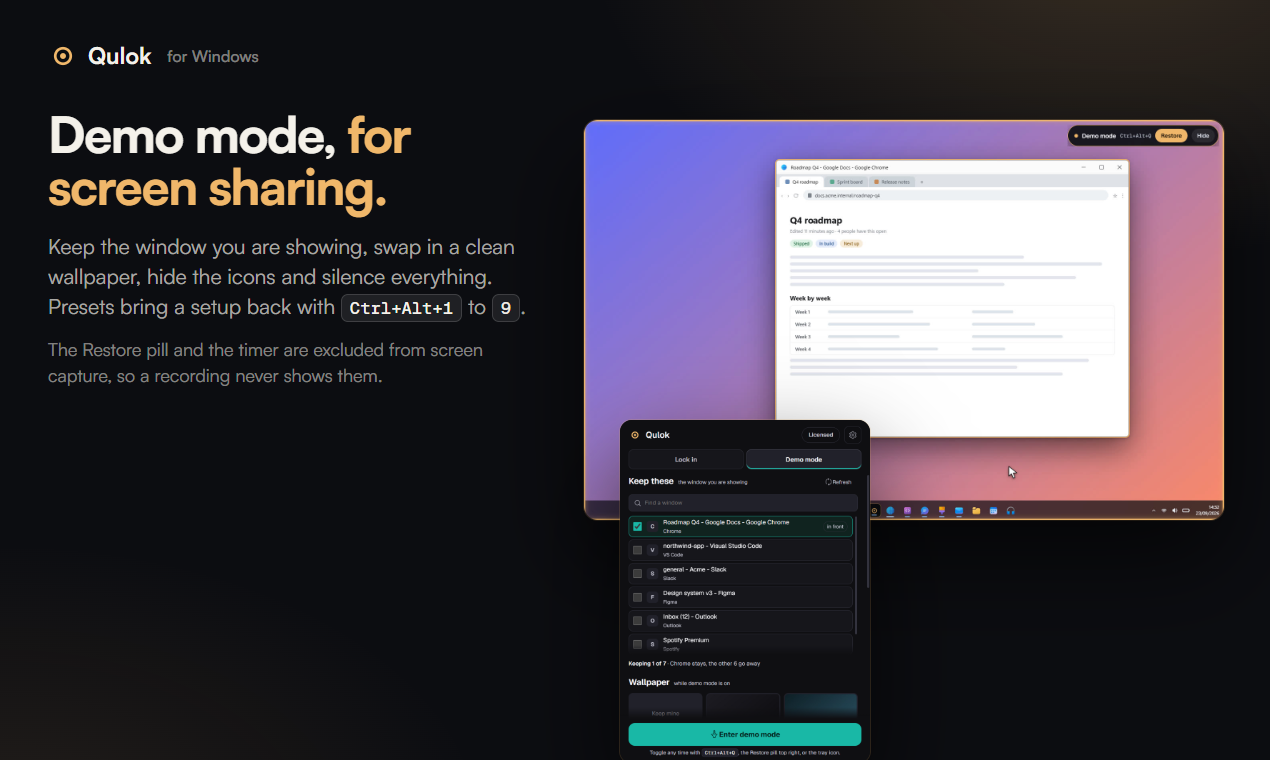
Tick the window you're showing and press Ctrl + Alt + Q. Qulok minimises everything else, hides the desktop icons, sets the taskbar to auto hide, silences notifications and, if you picked one, swaps in a clean wallpaper. Press the same keys again, or the Restore pill in the top right corner, or the tray icon, and everything comes back in the order it was, your own wallpaper included.
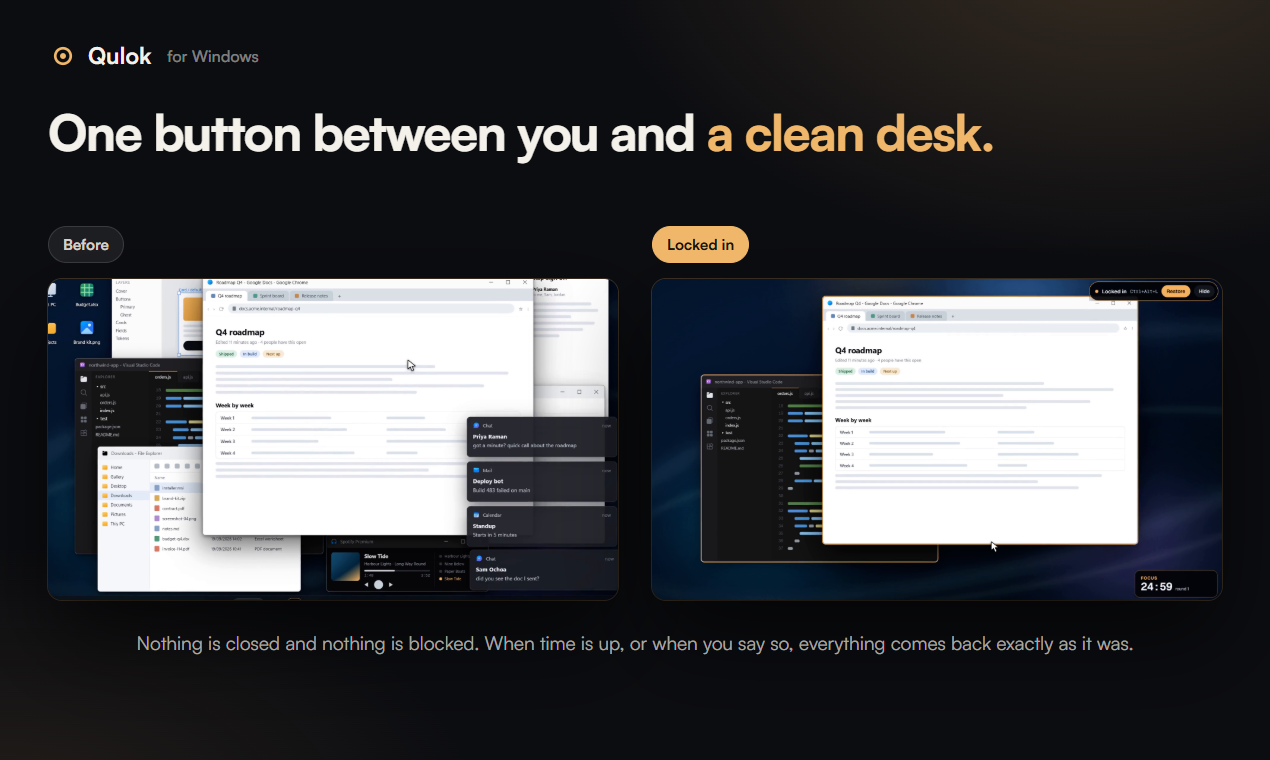
A few things that make it better than the manual version:
- Presets. Save a setup (which windows, which wallpaper, which toggles) and bring it back with Ctrl + Alt + 1 to 9.
- Its own buttons stay out of the share. The Restore pill and the timer are marked as excluded from screen capture, the same flag a password manager uses. I checked it with a real screen capture: with protection on, the only pixels in Qulok's gold were the launcher's own (599 of them), against 2,653 with it off.
- Crash safe. Qulok writes down what it changed before it changes anything, so if something dies mid session, the next launch puts your desk back first.
- Lock in, the other tab, is the same engine for focus: keep your work windows, hide the rest, run a timer or a Pomodoro in the corner.
What Qulok doesn't do
Worth knowing before you pay for it:
- It doesn't touch Do not disturb. Windows has no supported switch for it, so Qulok turns off the Windows notification master switch (the one in Settings, System, Notifications) and turns it back on at the end. Windows only rereads that switch when its notification service starts, and before version 0.6.4 that meant Silence notifications did nothing until your next sign in. Since 0.6.4 (26 Sep) Qulok restarts that service when a session starts and ends, which takes under two seconds and needs no admin rights. Notifications already in the notification centre stay there, and one that's on screen at the moment you start may disappear a little early.
- The taskbar still peeks. Qulok flips the same auto hide setting as step 3, so the taskbar slides up if your mouse hits the bottom edge.
- It can't hide browser tabs. Windows can't see inside a browser window. Open the tabs you need in their own window and keep that one.
- It never closes or blocks anything. Windows are minimised and come back. If you bring one back mid session, it stays back.
- Windows only. Windows 10 (version 2004 or later) and Windows 11, 64 bit. A Mac version is on a waitlist at the bottom of qulok.com.
- The installer isn't code signed yet, so SmartScreen warns once. Choose More info, then Run anyway. It's coming to the Microsoft Store at the same prices.
It's $5 a month after a 7 day free trial, or $29 once for life. Both cover 2 of your own PCs. The trial takes your card at checkout and charges nothing for 7 days; cancel before then at qulok.com/manage with your licence key and you pay nothing.
What else do you hide before you hit share? I'm always after one more thing to add to the list.