How to zoom in and out on a screen recording on Windows, free and automatic
Short answer: you can zoom while you record (Windows Magnifier with Windows + Plus, ZoomIt's LiveZoom with Ctrl + 4, or a zoom script in OBS), or zoom afterwards in a free editor by animating the scale: Scale keyframes in CapCut desktop, or Zoom and Position keyframes in DaVinci Resolve. Zooming afterwards is more work but you can fix it. Zooming live is quick but whatever you did is baked in. Either way: zoom in on the click, hold it while the result shows, and don't zoom on every single click.
I build a screen recorder whose main job is this, so I've spent a silly amount of time watching zooms. Here are the free ways, what each is like to use, and what I learned about making zooms comfortable to watch.
Why zoom at all
A full screen recording played on a phone is tiny. The button you're clicking might be a few pixels tall. A zoom says "look here" and makes the text readable, which is most of the difference between a demo people follow and one they scroll past.
Zoom while you record
These zoom your actual screen, so the recorder captures the zoomed picture. Do a short test recording first to check your recorder picks it up.
Windows Magnifier
Built into Windows. Press Windows + Plus to turn it on, Windows + Plus or Windows + Minus to zoom in and out, and Windows + Esc to turn it off. Ctrl + Alt + mouse wheel zooms with the scroll wheel (Microsoft Support). Use the full screen view (Ctrl + Alt + F) so the whole picture zooms rather than a lens or a docked strip (Microsoft Support).
The catch: the moves are instant steps, not smooth, and it's easy to end up zoomed in on the wrong corner.
ZoomIt
ZoomIt is Microsoft's Sysinternals tool for zooming and drawing on the screen during demos, and it's also inside PowerToys. Ctrl + 4 starts LiveZoom, where you keep working while zoomed, and Ctrl + 1 is a still zoom you can draw on (Microsoft Learn). It can record the screen itself too (Ctrl + 5). Smoother than Magnifier, and it's made for presenting.
OBS: the zoom to mouse script
If you record in OBS, the popular free option is the obs-zoom-to-mouse Lua script. Add a Display Capture source, open Tools, Scripts, add the script with the + button, then set a hotkey for Toggle zoom to mouse under Settings, Hotkeys. It animates a crop on the capture "so it appears to zoom into that location", and only works on Display Capture sources (GitHub).
Worth knowing: the repo's last commit was in February 2024, so if it throws errors on a newer OBS, check the repo's issues for a fix before you give up on it.
The problem with zooming live
You have to remember to press the key at the right moment, while also clicking and talking. And if you zoom too late or on the wrong spot, it's in the recording. There's no undo.
Zoom afterwards, in an editor
Record the full screen normally, then animate a zoom in the edit. Slower, but you can redo it as many times as you like.
CapCut desktop: Scale keyframes
- Put the recording on the timeline and select it.
- Move the playhead to just before the click and click the diamond next to Scale (and Position) in the right panel. That's the start: no zoom.
- Move the playhead a few frames on, raise Scale and move Position so the area you want fills the frame. CapCut adds a second keyframe and animates between them.
- Move to where you want to zoom back out, add a keyframe at the same zoom, then a last one back at the original scale.
- Use Ease In and Ease Out so the moves don't start and stop with a jolt (CapCut).
That's four keyframes per zoom.
DaVinci Resolve (free): Zoom and Position keyframes
In the Inspector, under Transform, Zoom "allows you to blow the image up" and Position moves it within the frame. Every parameter that can be keyframed has a keyframe button to the right of its slider: put the playhead where the zoom starts, click it, move on, change the values, and Resolve animates between the two. Right click a keyframe and choose Ease In and Out to smooth it. For one simple push in, Dynamic Zoom does it without keyframes (DaVinci Resolve 21 Reference Manual).
Clipchamp
Clipchamp is free on Windows, but I couldn't find keyframes anywhere in its help pages. What it does have is a slow zoom effect among its effects, which slowly magnifies the clip (Clipchamp), and crop in the floating toolbar. So the Clipchamp way is a cut rather than a smooth move: split the clip at the click, then crop that piece in on the area you want. It works, it's just a jump instead of a glide.
How to make zooms that don't make people seasick
This is the part that took me longest to get right.
- Zoom on the click, not the cursor. The click is where something happens. Following every mouse move turns into a camera that never sits still.
- Hold it. Stay zoomed long enough for the result to show and be read. My default is 2.2 seconds after the last click or keystroke, with 2x as the zoom level.
- Join clicks that are close together. If you click, then click again a second later nearby, stay zoomed and glide over instead of zooming out and straight back in. That bounce is the thing that makes people feel sick. I join clicks up to 1.5 seconds apart into one zoom.
- Ease every move. A zoom that starts and stops at full speed looks like a glitch.
- Pull back for long moves. When you cross the whole screen, zoom out a bit, move, then zoom back in. A zoomed camera that whips across the screen loses the cursor for half a second.
- Not every click needs a zoom. Opening a menu you'll click into straight away can stay wide.
The automatic way: Framok
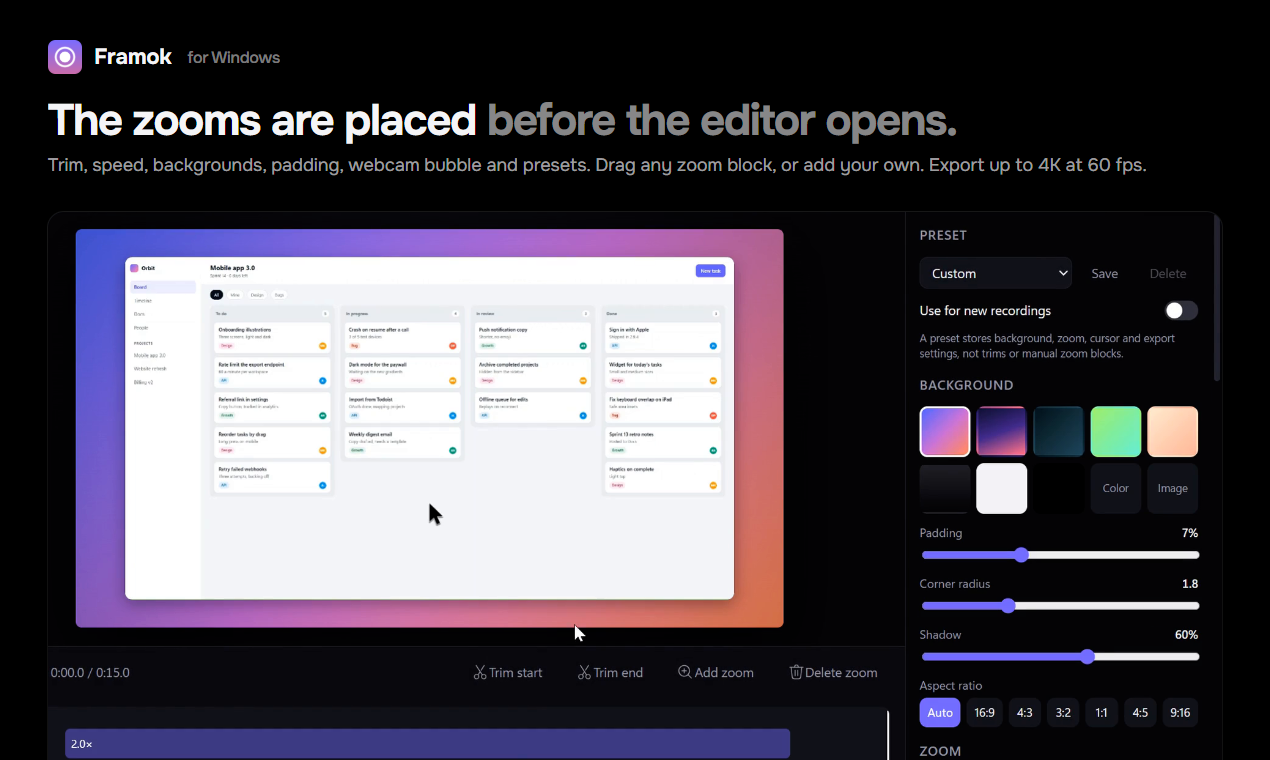
This is exactly what I built Framok, my screen recorder for Windows, to do. It logs every click, key and mouse move while you record, so by the time the editor opens, the zooms are already placed on the timeline.
- Three zoom modes: zoom on clicks, follow the cursor, or typing only (zooms only where you click into a field and type).
- Zoom level from 1.2x to 4x (2x by default), and Stay zoomed for from half a second to 6 seconds.
- Join nearby zooms, 1.5 seconds by default and adjustable up to 4, so close clicks become one smooth move.
- Eased moves that pull back on long trips across the screen, so the cursor stays in the picture.
- Edit any of it. Drag a zoom block, delete one you don't want, or press Z to add your own at the playhead.
Where Framok doesn't help
- Only recordings made in Framok. The zooms come from the clicks it logged while recording, so it can't zoom a video from OBS or your phone. For those, use the editor routes above.
- No live zoom. The zoom happens in the export, not on your screen while you record. If you want the people on a live call to see the zoom, use Magnifier or ZoomIt.
- Windows only. Windows 10 or 11, 64 bit. A Mac version has a waitlist at the bottom of framok.com.
- No free trial on the download from framok.com. A 7 day trial comes with the Microsoft Store version, which isn't out yet, and paid licences have a 14 day money back guarantee.
- The installer isn't code signed yet, so SmartScreen warns the first time. Click More info, then Run anyway.
Framok is $39 once for the life of the product, or $5 a month and cancel any time. Both cover 2 of your own PCs.
How much zoom is too much for you? I'd love to know where people draw the line.
Sources
- Microsoft Support, Use Magnifier and Windows keyboard shortcuts for accessibility
- Microsoft Learn, ZoomIt, updated 10 Sep 2026
- GitHub, obs-zoom-to-mouse
- CapCut, How to add keyframes in CapCut PC, 27 Aug 2026
- Blackmagic Design, DaVinci Resolve 21 Reference Manual, July 2026, Transform and Keyframing Effects
- Clipchamp, video effects
- Framok's changelog (0.1.0 to 0.7.11) and its editor settings, for the zoom modes, defaults and ranges