How to make a screen recording look like Screen Studio on Windows
Short answer: Screen Studio itself is Mac only, and its makers say there are "no near-future plans to add Windows support". The look is five things: the recording sitting on a padded background with rounded corners and a shadow, a bigger cursor that glides instead of shaking, zooms on your clicks, smooth eased motion, and a little motion blur. You can fake most of it for free on Windows (a background and a zoom in Clipchamp or CapCut, a rounded frame and a shadow in OBS with a shader plugin), but it's slow. The quicker way is an app that does it in one pass: Cap and Recordly are free for personal use and open source, FocuSee and Tella are paid, and so is mine.
I build one of those apps, so take the last part with that in mind. The free routes come first and they're real options.
What the "Screen Studio look" is made of
Going by Screen Studio's own page (Screen Studio):
- Zoom on what you did. It "looks at what you did while recording, like where you clicked, and zooms in on the moments that matter."
- A cursor that glides. "Shaky movement becomes a steady glide." The trick: "It records your screen, ignoring the mouse cursor, and then adds the cursor back in the final video."
- Motion blur on quick moves.
- A frame. "Backgrounds, padding, and shadow", with the shadow's angle, distance and softness adjustable.
- Exports in 720p, 1080p or 4K at up to 60 fps.
It needs macOS (Ventura 13.1 or later recommended) and costs $29 a month, or $9 a month billed yearly. The FAQ is blunt about Windows: "No, and there are no near-future plans to add Windows support. Currently, Screen Studio only supports macOS."
So on a PC you either build the look piece by piece, or use something else that does it all.
The free way, piece by piece
A bigger, easier to follow cursor
Before you record, open Settings, Accessibility, Mouse pointer and touch. Drag the Size slider up, and under Mouse pointer style pick white, black, inverted or a bright colour (Microsoft Support). It's recorded as it is, so a shaky hand stays shaky, but a bigger pointer is half the battle on a phone screen. I went into more detail in how to highlight, enlarge or hide the cursor.
Background and padding in Clipchamp
Clipchamp is free on Windows, exports up to 1080p on the free plan and doesn't add a watermark (Microsoft Support, Microsoft Support). It even has its own screen recorder for a browser tab, a window or the whole screen, though it only records audio from a browser tab (Microsoft Support).
- Add a colour or gradient from Content library, Backgrounds and put it on the track under your recording (Microsoft Support).
- Shrink the recording in the preview so the background shows all the way round. That's your padding.
What it can't do: Microsoft's pages don't mention rounded corners or a drop shadow for a clip, so the recording stays a sharp rectangle.
Zoom in CapCut or Clipchamp
I covered this properly in how to zoom in and out on a screen recording on Windows. The short version: CapCut desktop and DaVinci Resolve can animate a smooth zoom with keyframes (about four per zoom), and Clipchamp can only jump in with a cut and a crop.
Rounded corners and a shadow in OBS
If you record in OBS, you can build the frame live:
- Add a Color Source (or an image) as the background, and put your Display Capture above it, scaled down so the background shows round the edge.
- Install the free obs-shaderfilter plugin. Add its shader filter to the capture and load
rounded_rect.shader, which can "round the corners of the input", then a second one withdrop_shadow.shaderfor "a basic drop shadow". - For zooms, the zoom to mouse script zooms the display capture to your cursor on a hotkey. It needs a four line fix on OBS 32, which I wrote up in OBS zoom to mouse not working.
Advanced Masks is another plugin that can round the corners, with a radius per corner.
What it costs in time
The frame is set up once in OBS, and in Clipchamp it's a couple of minutes per video. The zooms are the slow part. Every click you want zoomed is a few keyframes in an editor, or a hotkey you have to remember to press live in OBS, where a late press stays in the video. And none of these routes gives you a smoothed cursor or motion blur. That's the gap the dedicated apps fill.
Apps that do it in one pass on Windows
Checked on their own sites on 6 Oct 2026.
- Cap. Open source, on Windows 10 or newer. The editor has "Custom backgrounds, adjustable padding, rounded corners, shadows and borders" and can "Generate zooms from your recorded clicks." It's "100% free for personal use", and commercial use needs a paid plan: a desktop licence at $29 a year or $58 once, or Pro at $12 a user a month (Cap pricing). The code is AGPLv3, with some parts MIT (GitHub).
- Recordly. Free and open source (its readme says AGPL 3.0), with a Windows build for Windows 10 build 19041 and later. It lists "automatic zoom suggestions based on cursor activity", rounded corners, "blur, padding, and shadows" and cursor motion blur.
- OpenScreen. MIT licensed and free for commercial use, with auto zooms, cursor smoothing and motion blur, but its readme now says it's "archived and no longer maintained". Fine for a try, risky to build a routine on.
- FocuSee. Paid, Windows and Mac. Auto zoom on clicks and typing, backgrounds, rounded corners and shadows. From $24.99 for a month, $49.99 a year, or $199.99 for a lifetime licence; the free trial exports one video (FocuSee pricing).
- Tella. Paid, from $13 a user a month billed yearly, with Auto Zoom and a native Windows recorder. No free plan listed.
- Framok, mine. More below.
Of these, Recordly and OpenScreen list motion blur. Framok doesn't have it.
Framok
Framok is my take on the same idea for Windows, and it works the same way under the hood: the real cursor is kept out of the recording and every click and key is logged, so the editor does the camera work after.
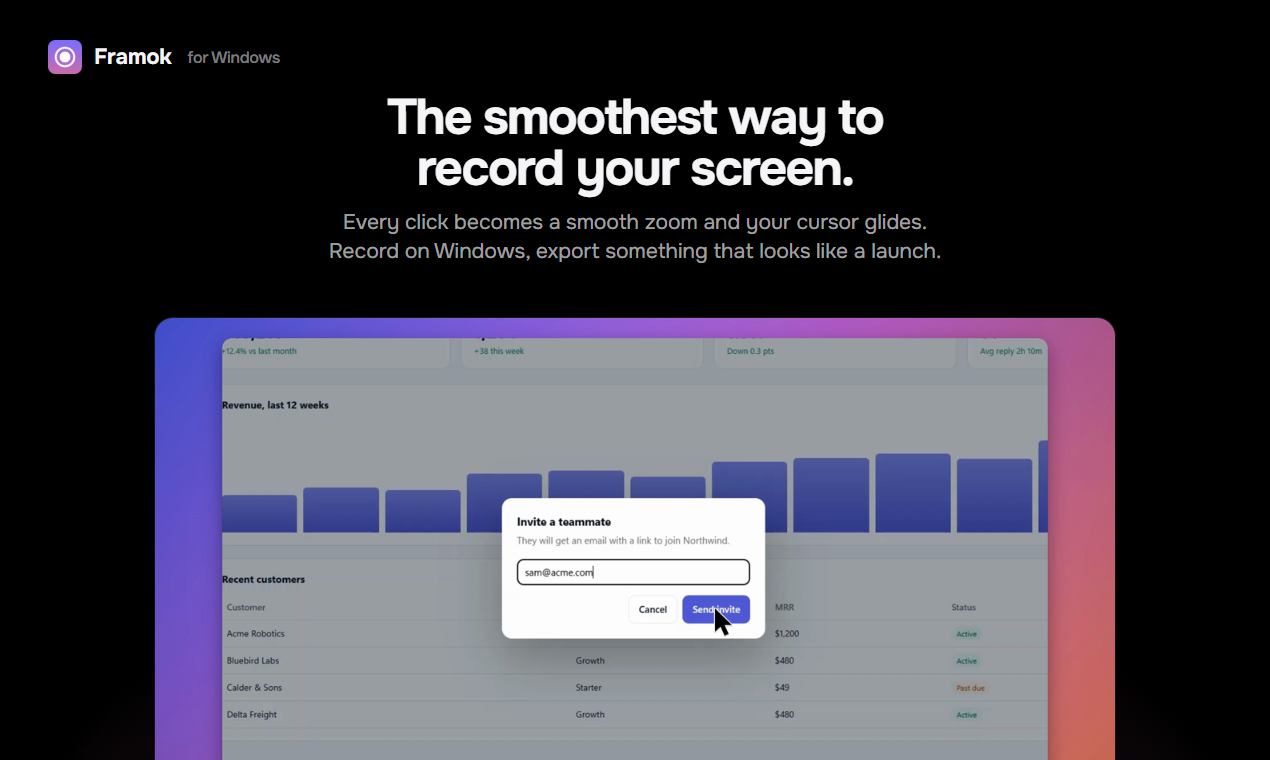
- Zoom on clicks, follow the cursor, or zoom only when typing, all placed for you and editable on the timeline.
- A cursor redrawn in post: larger, smoother, with a ripple and a little press on every click, in 15 styles.
- The frame: "a padded, rounded, shadowed frame on a gradient, a solid colour or your own image", saved as a preset.
- Every shape: 16:9, 4:5, 1:1 and 9:16, with Stack for vertical video.
- A webcam bubble and click and typing sounds, both added in the editor.
- Exports at 1080p, 1440p or 4K, up to 60 fps.
Where Framok doesn't help
- No motion blur. Moves are eased, not blurred.
- Only recordings made in Framok. It can't restyle a video from OBS or another recorder.
- No free version. Cap and Recordly are free for personal use; Framok isn't. There's no free trial on the download from framok.com either. A 7 day trial comes with the Microsoft Store version, which isn't out yet, and paid licences have a 14 day money back guarantee.
- Windows only. Windows 10 or 11, 64 bit. If you're on a Mac, Screen Studio is the original.
- The installer isn't code signed yet, so SmartScreen warns the first time. Click More info, then Run anyway.
Framok is $29 once for the life of the product, or $5 a month and cancel any time. Both cover 2 of your own PCs.
Which part of the look matters most to you: the zoom, the cursor or the frame? I keep changing my mind.
Sources
- Screen Studio, homepage, pricing and FAQ
- Microsoft Support, mouse pointer size and colour
- Microsoft Support, Clipchamp: export resolution, watermarks, screen recording and colour and gradient backgrounds
- OBS forum resources, obs-shaderfilter v2.6.0, Advanced Masks v1.5.4 and Zoom to Mouse
- Cap, site, pricing and GitHub
- GitHub, Recordly v1.4.0 and OpenScreen
- FocuSee, site and pricing
- Tella, pricing
- Framok's site (6 Oct 2026) and changelog, for its features, prices and requirements