Small UI animations that work for everyone: hover, focus, reduced motion, touch and dragging
Short answer: every effect you add on hover must also happen on keyboard focus, every animation needs a still version for people who ask for reduced motion, every control must be a real control (a button, a checkbox) under the styling, nothing may flash more than three times a second, and anything you drag must also work without dragging. Do those five things and a small animation stays a nice touch instead of a barrier.
We build these pieces for the Sundry Mill library, where each page runs the exact code you copy. This post collects the rules we follow, with the code that applies them, and one place where our own component needs more than the page gives you.
1. Hover is a bonus, focus is the rule
A mouse is one way in. People also reach a button with Tab, with a switch device or with a screen reader, and phones have no hover at all. So two things follow.
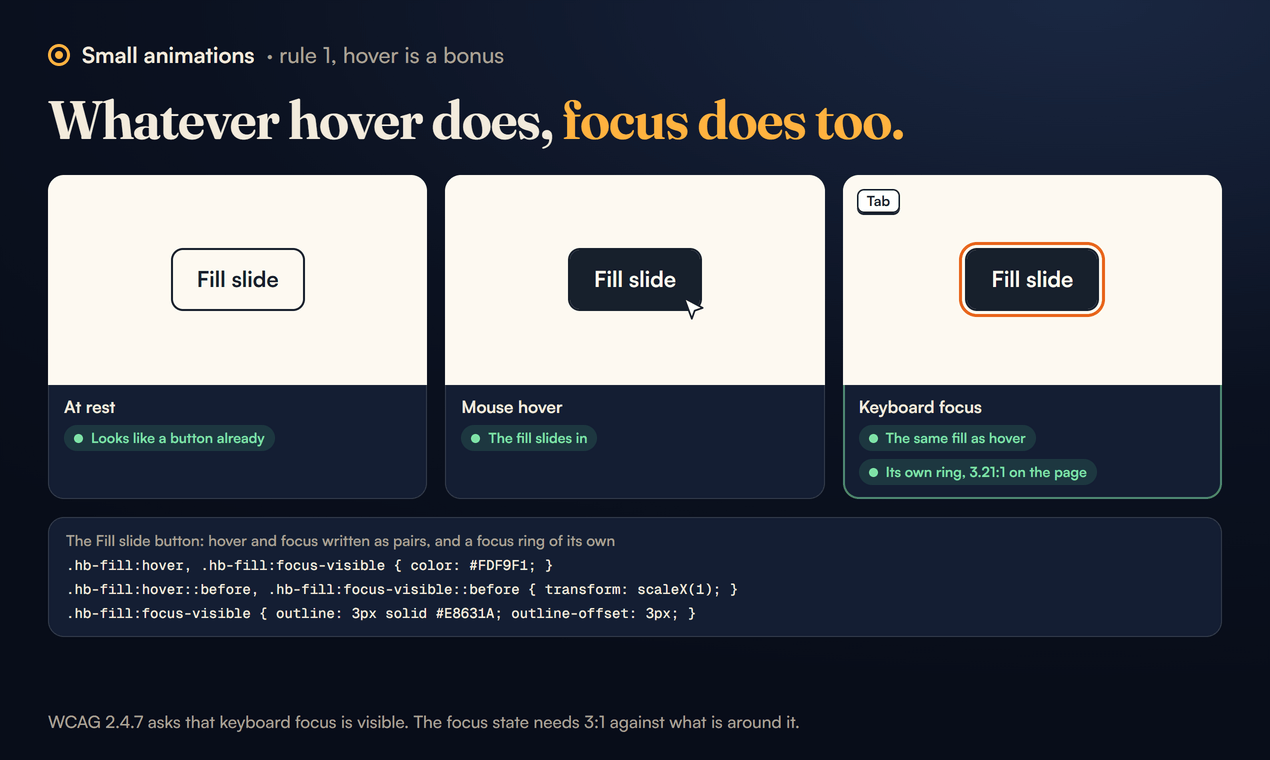
First, a button must look like a button before anyone hovers it. A hover effect can add life, but it cannot be the only sign that something is clickable.
Second, whatever happens on hover should also happen on keyboard focus. CSS has a selector made for this. :focus-visible matches a focused element only when the browser decides the focus "should be made evident", in MDN's words. In practice that means a keyboard user sees it and a mouse click on a button usually does not, so you get the effect for the people who need it without a ring flashing up on every click.
All six of our button hover effects are written as pairs:
.hb-fill:hover, .hb-fill:focus-visible { color: #FDF9F1; }
.hb-fill:hover::before, .hb-fill:focus-visible::before { transform: scaleX(1); }
WCAG 2.4.7 asks that keyboard focus is visible, and the understanding notes for 1.4.11 add that a focus indicator needs 3:1 contrast against what is around it. Hover effects themselves are treated as supplemental, so they do not have to meet 3:1. The focus state does.
Pairing the selectors is not always enough on its own. With nothing else set, Chrome draws its default focus ring, a thin dark line, right on the edge of the button. On the Fill slide that edge is already a dark #17202C border, so the ring disappears into it. The Fill slide therefore draws its own ring, set 3 pixels out so it cannot merge with the border:
.hb-fill:focus-visible { outline: 3px solid #E8631A; outline-offset: 3px; }The orange #E8631A is 3.21:1 against the cream #FDF9F1 page. Our Arrow nudge, Warm glow and magnetic button have dark edges too, and draw their own rings the same way.
2. Give every animation a still version
Some people get dizzy or sick from motion on screen, and every major system has a switch to ask for less of it. MDN lists where it lives: on Windows 11, Settings, Accessibility, Visual effects, Animation effects; on macOS, the Reduce motion setting under Accessibility; on iOS, Settings, Accessibility, Motion; on Android 9 and later, Settings, Accessibility, Remove animations. Websites can read it with the prefers-reduced-motion media query.
There are two ways to respect it. In CSS, switch the movement off and keep the end state:
@media (prefers-reduced-motion: reduce) {
  .term-line { animation: none; width: auto; }
  .term-caret { animation: none; }
}
That is the still version of our terminal text loop: every line shows in full straight away instead of typing itself out.
In JavaScript, check before you attach anything. Our 3D tilt card and magnetic button both start with this line, so for people who asked for less motion the card stays flat and the button stays put:
if (matchMedia('(prefers-reduced-motion: reduce)').matches) return;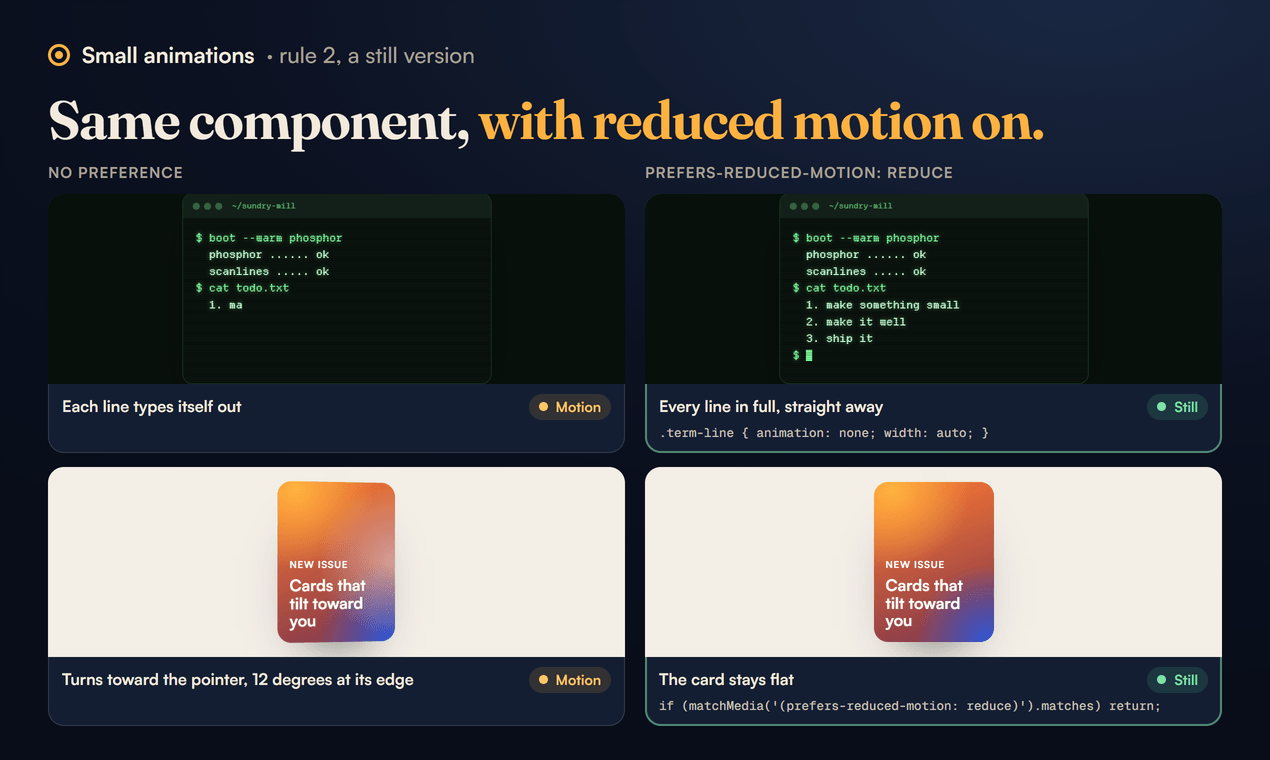
WCAG 2.3.3 (level AAA) asks that motion triggered by an interaction can be turned off unless it is essential. A tilting card is never essential, so it is the first thing to go.
Reduced motion does not mean no feedback. A toggle can still change colour, a checkbox can still show its tick, a loader can still say "Loading". It is the travel, spin and zoom that people are asking you to drop.
3. Nothing flashes more than three times a second
WCAG 2.3.1 says pages should not contain anything that "flashes more than three times in any one second period" unless the flash is below the general and red flash thresholds. Fast flashing can trigger seizures in people with photosensitive epilepsy, so this is a level A rule.
Most UI animation is nowhere near it, but blinking carets, pulsing alerts and "attention" effects can get close. The caret in our terminal loop blinks once a second:
.term-caret { animation: term-blink 1s steps(1) infinite; }
@keyframes term-blink { 50% { opacity: 0; } }
That is one flash a second, well under three. If you speed up a blink to make it feel urgent, count the flashes.
4. Style real controls, never replace them
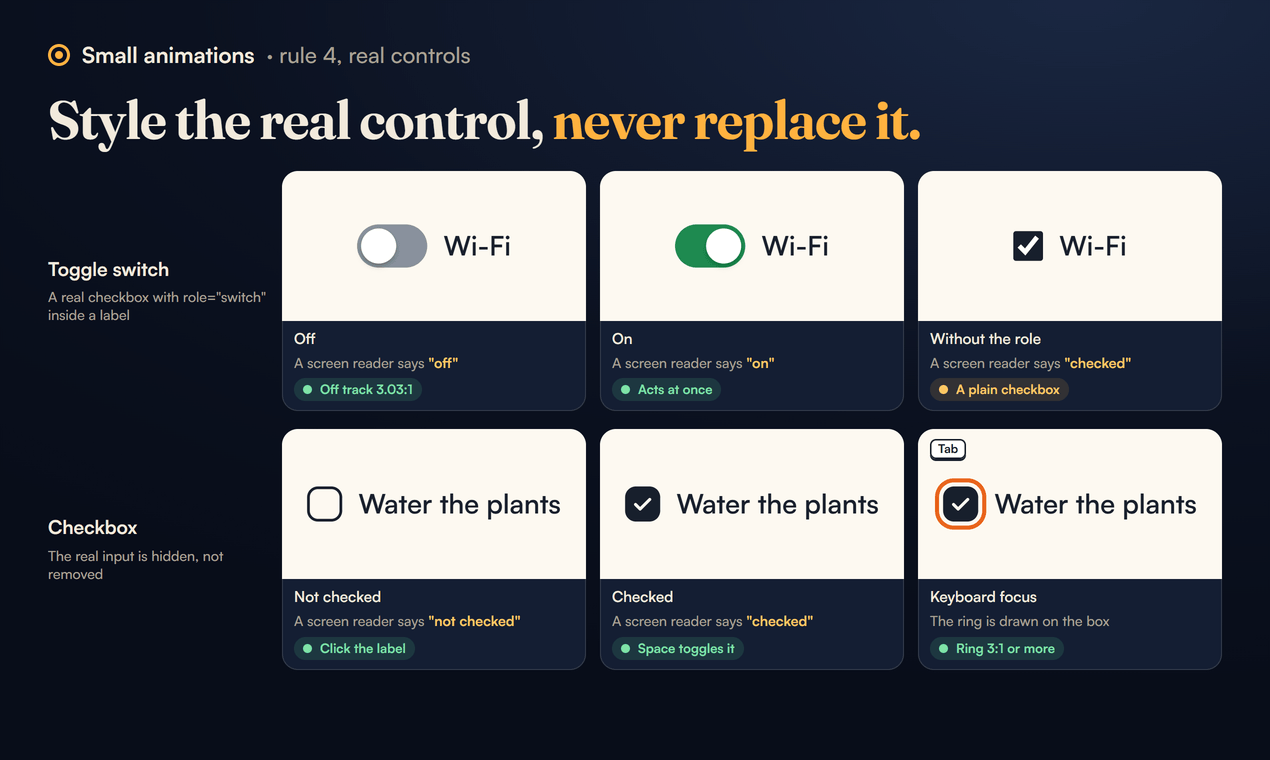
The fastest way to break a form for keyboard and screen reader users is to build a switch or a checkbox out of divs. A real input type="checkbox" already does focus, Space to toggle, a label you can click, and an on or off state a screen reader can announce. Keep it, and style around it.
Our toggle switches are each a real checkbox with role="switch" inside a label. The WAI-ARIA Authoring Practices describe a switch as "an input widget that allows users to choose one of two values: on or off", toggled with Space (and optionally Enter). The role changes what a screen reader says: "on" and "off" instead of "checked" and "not checked". Two more rules come with it:
- A switch acts at once, like a light switch. If the change waits for a Save button, use a plain checkbox instead, because the switch would be telling people something has happened when it has not.
- The off state must be visible. The track is a part of the control you need to see, so it needs 3:1 against its background under 1.4.11. The off track of our Classic switch is #89919D on the cream #FDF9F1 page: 3.03:1.
Our checkbox animations hide the real checkbox visually but leave it in the page, so clicking the label, pressing Space and screen readers all still work. The drawing on top is decoration. If the CSS failed to load, you would still have a working checkbox.
5. Loaders: say it once, and only when the wait is real
A spinning ring tells a sighted user that something is happening. A screen reader user gets nothing unless you tell them. Each of our CSS loaders carries role="status" and an aria-label, so a screen reader announces "Loading" once instead of staying silent.
Timing matters as much as markup. A loader that appears for 80 milliseconds is a flicker. We show one only after about 300 milliseconds, so fast responses never flash a spinner at all:
const slow = setTimeout(() => button.classList.add('is-loading'), 300);
await save();
clearTimeout(slow);
button.classList.remove('is-loading');
If the wait can be long, the reduced motion rule applies here too: a still ring with the word "Loading" is enough.
6. Anything you drag must work without dragging
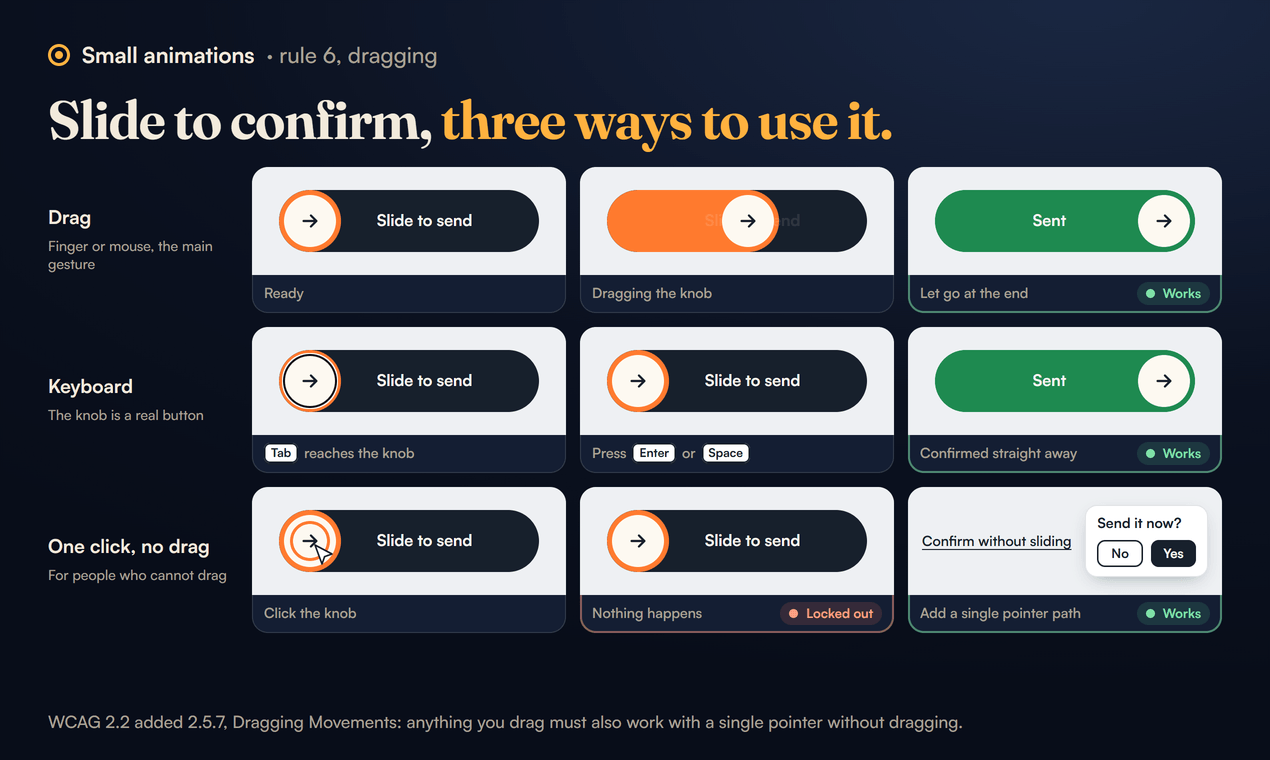
Dragging is hard for people with tremors, people using a head pointer and people using voice control. WCAG 2.2 added 2.5.7, Dragging Movements: everything that uses a dragging movement "can be achieved by a single pointer without dragging", unless dragging is essential.
This is the one place where our own component needs more than its page gives you. Our slide to confirm control is built so the knob is a real button: Tab reaches it, and Enter or Space confirms straight away. That covers keyboard users. It does not cover someone with a mouse or a finger who cannot drag, because a single click on the knob does nothing. The click handler only confirms when the click has no pointer behind it:
knob.addEventListener('click', (e) => {
  if (e.detail === 0 && !el.classList.contains('is-done')) done();
});
So when you use it, add a single pointer path next to it, for example a small "Confirm without sliding" link that opens an ordinary Yes or No dialog. The slider stays the main gesture for touch screens, where it prevents accidental taps, and nobody is locked out.
Two related rules for anything you can press:
- Targets at least 24 by 24 CSS pixels. That is WCAG 2.5.8. Small icon buttons and close crosses are the usual offenders.
- Targets that move are harder to hit. Our magnetic button leans toward the mouse, which is fun on one big call to action and annoying on a form. It reacts only to a mouse (
if (e.pointerType !== 'mouse') return;), so touch screens never see it, and it springs back as soon as the pointer leaves.
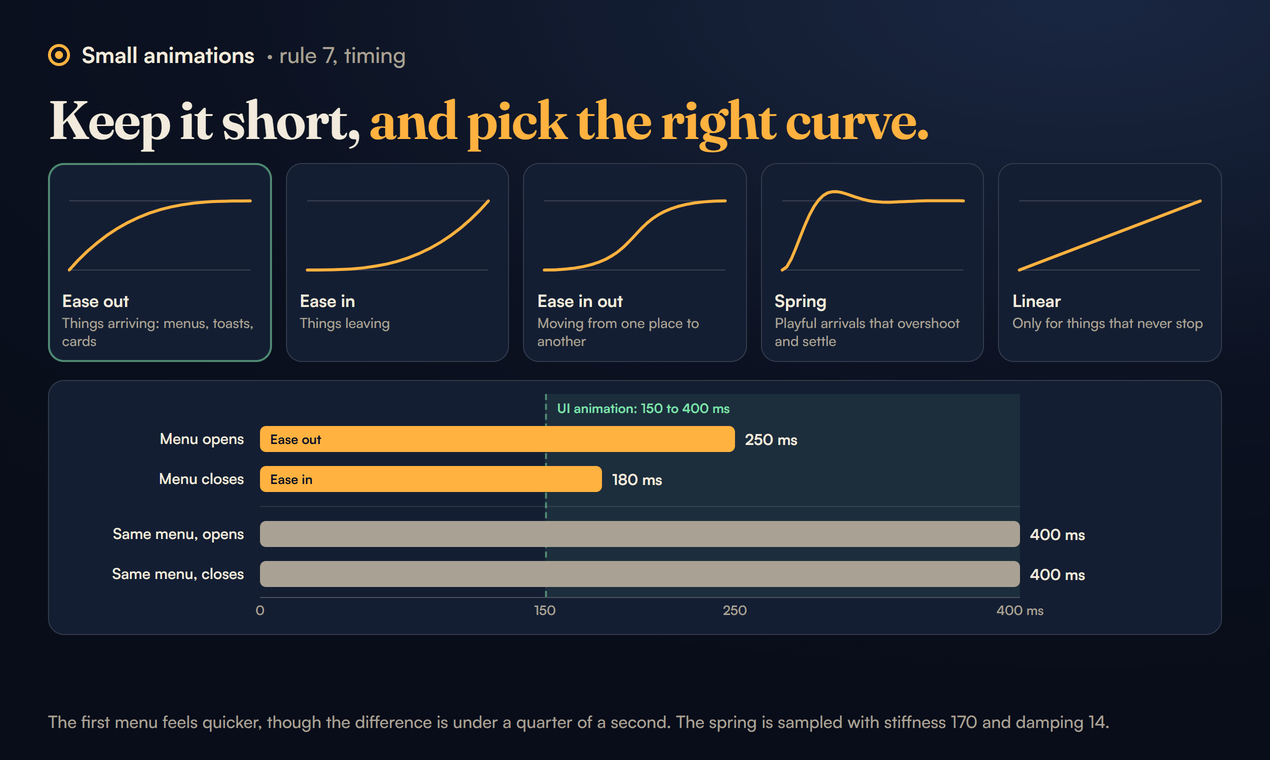
7. Keep it short, and pick the right curve
Most "this feels slow" complaints are timing, not design. The easing curves cheat sheet keeps UI animation between 150 and 400 milliseconds and gives each curve one job:
- Ease out (fast start, gentle end) for things arriving: menus, toasts, cards. The one to use most.
- Ease in for things leaving. Speeding up as it goes feels like the interface is getting out of the way.
- Ease in out for things moving from one place to another on screen.
- A spring for playful arrivals that overshoot and settle. Ours is a CSS
linear()list sampled from a spring with stiffness 170 and damping 14. - Linear only for things that never stop, like spinners.
A menu that opens with ease out over 250 ms and closes with ease in over 180 ms feels quicker than the same menu at 400 ms both ways, though the difference is under a quarter of a second.
Size matters too. Our tilt card turns about 12 degrees at its edge. At 30 degrees it looks like it is falling over, and text on it gets hard to read.
A checklist before you ship a small animation
- Does it also happen on
:focus-visible? - Does it stop, or show its end state, under
prefers-reduced-motion: reduce? - Is there a real
button,aorinputunderneath, with a label? - Does it flash fewer than three times a second?
- If it is dragged, is there a way to do the same thing with one tap or click?
- Is every target at least 24 by 24 CSS pixels, and does it stay still while people aim?
- Is it between 150 and 400 ms, on a curve that matches what the element is doing?
- Does its focus state and every state of the control have 3:1 contrast against its surroundings?
The slide to confirm page in the library now says what to add for the fifth. If you find a library page that misses any of the others, tell us at support@sundrymill.com and we will fix it.
Sources
- WCAG 2.2: success criteria 2.3.1 Three Flashes or Below Threshold, 2.3.3 Animation from Interactions, 2.4.7 Focus Visible, 2.5.7 Dragging Movements and 2.5.8 Target Size (Minimum).
- Understanding Success Criterion 1.4.11: Non-text Contrast: focus indicators, states and hover.
- MDN: prefers-reduced-motion: the values and where each system keeps the setting.
- MDN: :focus-visible: how it differs from
:focus. - WAI-ARIA Authoring Practices: Switch pattern: the switch role and its keyboard behaviour.
- The code in this post is from the Sundry Mill library pages it links to, as updated on 28 October 2026.